SD Card Repair Fixer
- 3.6
- Rating
- 100.00K
- Installs
- Free
- Price
 Analysis by App-foxy
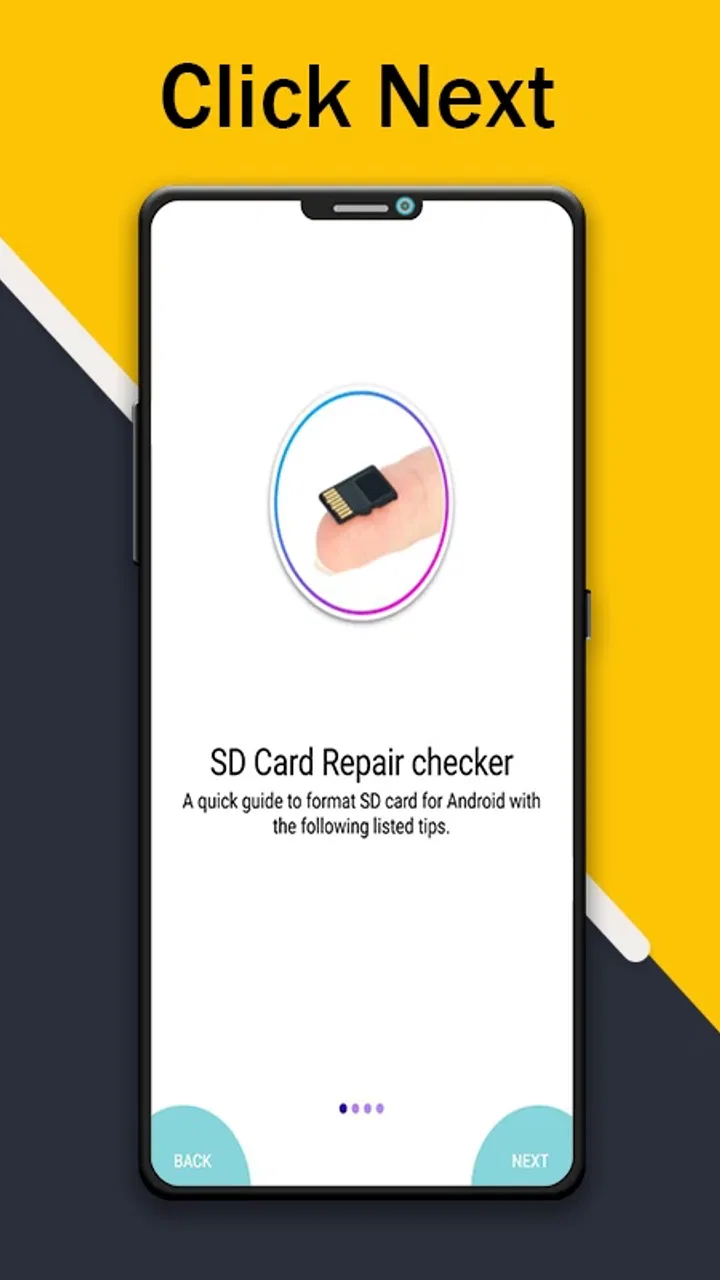
When an SD card starts behaving strangely, the first question is usually simple: is the problem with the card, the phone, or the device’s ability to work with external storage? SD Card Repair Fixer is aimed at that first stage of troubleshooting. It is a free Android utility from Light-APP in the Libraries & Demo category, built around checking whether a device supports SD card repair-related functions.
I see it as a small diagnostic checkpoint rather than a complete file-recovery solution. That distinction matters. If you are trying to decide whether your phone can work with a repair-checking tool, this app may provide a useful starting point. If you expect it to restore deleted photos, repair every damaged card, or replace a computer-based recovery program, you are likely to be disappointed.
What I would check before relying on it
I would treat this section as a pause before acting on any result: first check that the card is seated properly, the phone recognizes other storage normally, and anything still readable has been copied somewhere safe. I’d also keep the app’s narrow purpose in mind, so a compatibility result guides my next step rather than deciding the card’s fate. That context makes the choice of another tool easier to judge.
You May Also Like

 Blood Strike: 2.5 Anniversary
Blood Strike’s Loadouts Turn Every Drop Into a Tactical Gamble
A close look at Blood Strike’s custom loadouts: how fast access to signature weapons reshapes its battle royale rhythm, rewards preparation, and narrows the gap between fights.

 Pandora - Music & Podcasts
Pandora’s Music Is Easy to Start, but Harder to Recover
Pandora’s strength is its low-effort path from a seed to a station. Its weak spot is how much confidence it asks you to place in connection, setup, and quiet recovery.

 8 Ball Pool
 Is Built on Rivalries, Rematches, and Routine
A close look at the rivalries, rematches, shared routines, and unanswered safety questions that turn a quick pool match into a persistent mobile community.

 Samsung Music
’s Quiet Strength Is Playing What You Already Own
Its reach comes less from spectacle than from dependable access to a personal library. That simplicity is both the app’s strongest retention engine and its ceiling.

 AccuWeather: Weather Radar
AccuWeather Review: A Quick, Clear Forecast for Everyday Decisions
For everyday plans, the best forecast is the one you can understand quickly. AccuWeather makes rain timing, radar, and local conditions easy to act on, with a few trade-offs.

 Hill Climb Racing
Why Hill Climb Racing Still Turns Crashes Into One More Run
A tiny car, a bumpy hill and one more upgrade: Hill Climb Racing keeps resurfacing because its simple chaos makes every near-miss feel personal.
More From Our News Desk



Start with the actual problem
Before opening the app, I would first identify what the SD card is doing. A card that is not visible at all creates a different situation from one that appears in the file manager but refuses to open certain folders. Likewise, a card that works in another device may point to a phone compatibility issue rather than physical damage.
This is where the app’s purpose becomes clearer. Its store summary focuses on checking whether the device supports SD Card Repair checker functionality. In practical terms, I would use it as an early compatibility check, not as proof that the card itself is healthy. A positive result does not automatically mean that lost files can be recovered, and a negative result does not by itself prove that the card is beyond repair.
My first useful habit would be to stop writing new files to a questionable card. Taking photos, downloading videos, or moving applications onto it can overwrite recoverable information. The app can help me decide whether to continue investigating on the phone, but protecting the card’s contents still depends on what I do outside the app.
Keep the decision practical
The app is free, has an Everyone content rating, and runs on Android versions starting with 7.0. That makes it easy to consider on an older compatible phone, especially if I do not want to pay for a repair utility before knowing whether the device can support the relevant checking process.
At the same time, I would not install it merely because an SD card is full or slow. Storage management, file cleanup, and card repair are separate jobs. If the issue is simply low space, a file manager and a backup routine are more appropriate. If the card disconnects repeatedly, I would also test the card in another reader or phone before treating this app’s result as the final answer.
A realistic everyday scenario
Imagine that I use a removable card in an older Android phone for music and camera files. One morning, the phone shows a notification that the card needs attention, but the gallery displays only some of the pictures. I would avoid formatting the card, back up anything still readable, and then use this app to check whether the phone supports the repair-checking path it is designed to examine.
If the device appears suitable, I would continue with a cautious workflow: copy accessible files elsewhere, note which folders are missing, and only then investigate repair options. If the device is not suitable, I would move the card to a computer or another compatible device rather than repeatedly retrying the same process. The value here is not a dramatic one-tap rescue; it is helping me choose the next sensible place to work.
What the app can and cannot tell me
The most important trade-off is the difference between device support checking and actual data repair. A compatibility checker can answer whether a device is a reasonable environment for a particular repair-checking task. It cannot replace a backup, a physical card reader, or a dedicated recovery workflow.
I would also treat any result as one piece of evidence. Android versions, phone manufacturers, storage permissions, card formats, and the condition of the card can all affect what happens next. Even when an app identifies a potentially suitable device, the card may still have broken hardware or a damaged file system. That is why I would never use a compatibility result as permission to format the card immediately.
How it compares with the usual alternatives
For me, the useful comparison is about the job at hand, not which tool sounds more powerful. A file manager is better for accessible files, while a computer and card reader can offer a more controlled route when the card is unstable or the data matters greatly. I’d use this app when the unresolved question is device support, then switch methods if the problem turns out to be recovery, file access, or card health.
Where this app makes sense
The strongest reason to choose SD Card Repair Fixer is its narrow starting point. Instead of immediately searching for a large recovery package, I can use a lightweight tool to determine whether my Android device is even a sensible place to begin. For someone troubleshooting on an older phone, that can prevent wasted time and unnecessary purchases.
Its simple positioning also makes it approachable. I do not need to understand every technical detail of storage repair before trying a compatibility check. The app is available at no cost, and its audience is broad enough for general Android users rather than only specialists. Light-APP has kept the product focused on a very specific storage question, which is more useful than pretending that one small utility can solve every SD card failure.
The public response is mixed but not dismissive: the app holds a 3.5 average from around 4.8 thousand ratings, with over 100 thousand installs. I read those figures as a sign that it has found a real troubleshooting audience, while also reminding me not to treat it as a universally reliable repair answer.
When a file manager is the better choice
If I can already open the card and my only goal is to move photos, rename folders, or remove duplicate downloads, a normal file manager is more useful. It gives me direct control over visible files instead of focusing on repair-checker compatibility.
This is an important distinction for everyday users. A card can appear to be “broken” when the real problem is a full storage volume, an incorrectly organized folder, or a gallery app that has not refreshed its index. In those cases, SD Card Repair Fixer is not the first tool I would reach for. I would begin with the built-in storage screen, a file browser, and a backup destination.
When another Android utility may fit better
Some users are looking for a card health check, a speed test, a formatting tool, or a way to identify large files. Those are different categories of utility. I would choose an app designed specifically for the task I can describe, rather than assuming that a title containing “repair” covers every storage problem.
I would be especially careful with apps that promise instant recovery of all lost data. The condition of the card matters, and recovery often depends on whether the original information has been overwritten. A more specialized option may be better when I need a detailed report, file carving, partition analysis, or a controlled read-only workflow. SD Card Repair Fixer is more suitable at the decision point before that deeper work.
When a computer or card reader is the better move
Phone-based troubleshooting is convenient, but it is not always the safest environment for a failing card. If the card repeatedly disconnects, becomes unusually hot, or causes the phone to freeze, I would stop experimenting on the phone. A computer with a reliable card reader can provide a more controlled way to copy files or create an image for later analysis.
This is also where the cost of switching appears. The app itself is free, so trying it does not require a financial commitment. The real cost is time: installing it, interpreting the result, and deciding whether to continue. Moving to another device may require access to a computer, a card reader, or a second phone. Even so, that inconvenience is preferable to repeatedly mounting and unmounting a card that may be physically failing.
Small workflow choices that make a difference
I would use the app before making destructive changes, not after formatting. That timing is one of the most useful practical insights here. Once a card has been formatted or heavily used again, recovery may become harder. The app can be part of a cautious sequence, but it should not be treated as a reason to take risks with the original card.
I would also test the phone without the questionable card when possible. If the device behaves normally without it, the card becomes a stronger suspect. If the phone has trouble recognizing several known-good cards, the phone’s slot or software may deserve more attention. This comparison prevents me from blaming the card solely because an app reports a compatibility-related issue.
Another useful habit is to record what was visible before trying anything else. I would note the card’s label, the folders that opened, and whether the phone displayed a capacity. Those details help me compare results across devices and avoid repeating random fixes. A repair checker is more valuable when used as part of an organized diagnosis rather than as a button I press repeatedly.
Version and device considerations
The current version is 10.0, and the app supports Android 7.0 and later. That broad operating-system range is helpful if I am troubleshooting an older handset, but compatibility with Android itself should not be confused with compatibility with every card, file system, or manufacturer implementation.
I would also check the phone’s own storage settings and documentation before drawing conclusions. Some devices support removable cards mainly for media, while others handle them differently. The app may help with the question it is designed to address, but the phone’s hardware and software still determine what can actually be done.
Who should use it
I would recommend trying it to someone who has an Android phone, an SD card problem, and uncertainty about whether the device can support a repair-checking approach. It is particularly reasonable for people who want a free first step and understand that checking support is not the same as restoring files.
It may also suit a family member who is not comfortable with computer utilities and only needs an initial direction. In that situation, I would explain the result in plain language and help them back up readable files before attempting anything more involved.
Who should skip it
I would skip it when the need is clearly different: routine file browsing, card formatting, storage cleanup, performance testing, or advanced forensic recovery. I would also avoid making it the only tool in a situation involving irreplaceable photographs, business documents, or a card that is physically unstable.
For valuable data, the best choice may be a careful image-first workflow handled on a computer, or professional assistance if the card is failing mechanically. The free nature of this app is appealing, but free access should not be mistaken for a guarantee of safe recovery.
My recommendation after weighing the trade-offs
After using it as a decision aid, I would describe SD Card Repair Fixer as a modest but potentially useful first checkpoint. It is not the kind of app I would keep open every day, and it does not replace the usual alternatives for managing files or recovering seriously damaged storage. Its role is narrower: help determine whether an Android device is a reasonable place to investigate SD card repair-checker support.
That narrow role is also its main weakness. Anyone expecting a complete repair suite may find the experience too limited, especially if the card is unreadable or the problem requires tools outside Android. The app’s rating of 3.5 suggests a mixed experience among users, so I would approach it with realistic expectations rather than assuming that every device and card combination will behave the same way.
Still, because it is free, carries an Everyone rating, and supports Android 7.0 and newer, I think it is worth a cautious try when the question is specifically about device support. I would install it before formatting, back up whatever remains accessible, and use its result to choose between continuing on the phone and moving to a computer or another device.
My clear advice: use it as an early compatibility check, not as a promise of recovery. If your problem is deciding where to begin, it can save you from guessing. If your problem is valuable data on a physically failing card, protect the card first and choose a more controlled recovery path. That is the point at which the app’s simple approach stops being enough, and knowing that boundary is what makes it useful rather than misleading.
Light-APP’s app was released on Jul 31, 2019, and remains available as a free Android option in this focused troubleshooting space. I would recommend it to patient users who want a low-risk first check, while directing anyone with urgent or irreplaceable files toward backup and specialist tools before experimenting further.
FAQs for SD Card Repair Fixer
01What is SD Card Repair Fixer and how does it work?
SD Card Repair Fixer is an app designed to diagnose and fix common issues with SD cards, such as corruption or formatting errors. It works by scanning your card for errors and attempting to repair them, allowing you to recover lost data or restore functionality. It’s a handy tool for ensuring your storage devices work properly.
02Is SD Card Repair Fixer safe to use on all types of SD cards?
Yes, SD Card Repair Fixer is generally safe to use on most types of SD cards, including microSD, SDHC, and SDXC cards. However, it’s always recommended to back up your data before performing any repairs, as there’s a risk of data loss during the process, especially if the card is severely damaged.
03Can SD Card Repair Fixer recover deleted files from my SD card?
The primary function of SD Card Repair Fixer is to repair errors rather than recover deleted files. While it may restore access to files on a corrupted card, it’s not specifically designed for file recovery. For recovering deleted files, you might want to consider a dedicated data recovery tool.
04Does SD Card Repair Fixer require internet access to function?
No, SD Card Repair Fixer does not require internet access to function. The app operates offline, allowing you to repair your SD card without the need for a network connection. This makes it convenient to use in various situations, particularly when traveling or in remote areas.
05What should I do if SD Card Repair Fixer cannot fix my SD card?
If SD Card Repair Fixer cannot repair your SD card, it may be due to severe physical damage or corruption beyond software repair capabilities. In such cases, consider consulting a professional data recovery service. Additionally, checking the manufacturer’s warranty might provide options for replacement if the card is still under warranty.
Pros
- User-friendly interface for easy navigation.
- Quick scanning and repair process.
- Supports a wide range of SD card brands.
- Detailed error reports for transparency.
- Minimal resource usage on devices.
Cons
- Limited free features without premium.
- Occasional false error detection.
- No support for encrypted SD cards.
- Requires internet for some functions.
- Ads can be intrusive during use.

SD Card Repair Fixer
Gallery